Can Wedding Guests Add to a Google Photos Album?
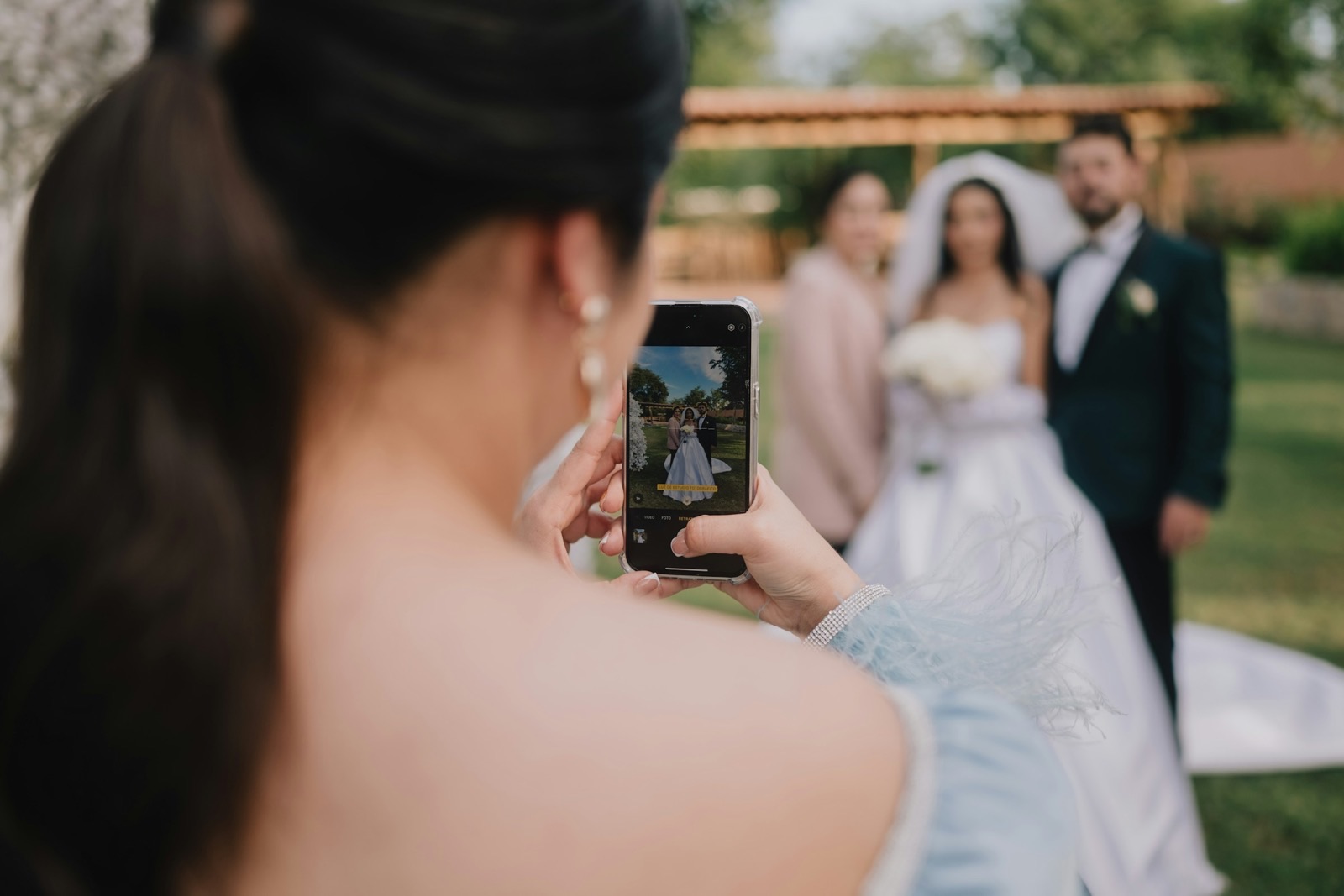
Guests can view a shared Google Photos album without a Google account. They cannot add photos to one. Contributing requires being signed in to a Google account, so any guest without one, or anyone who cannot remember their password at a wedding reception, reaches a sign-in screen instead of an upload button.
That split between viewing and adding is the part most couples do not discover until the night itself.
Viewing works for everyone
Anyone with the link can open a shared album and look through it. No account, no app, no sign-in. This part of Google Photos genuinely works the way you would hope, and it is why shared albums are still a reasonable way to send photos out to guests after the wedding.
If all you want is for people to see and download the pictures, a shared album is a perfectly good answer and you can stop reading here.
Adding photos requires an account
To contribute to a shared album, a guest must be signed in to a Google account, and the album owner must have turned on the Collaborate option. Both conditions have to be true. Miss either one and the guest can look but not add.
Google's own help forum carries long-running threads on this, including one titled "Can not upload photos to a shared album without signing in". The confusion is common enough to have its own support threads.
Why Google's instructions suggest otherwise
Google's help page for sharing says that when you share a link to an album, "anyone with the link can view the photos and add to the album." Read plainly, that sounds like adding works for anyone.
In practice the sentence is describing what the album permits, not what an account-less guest can do. The permission is open; the act of uploading still runs through Google Photos, and Google Photos wants a signed-in account before it accepts a file.
This is the single biggest reason couples are surprised on the day. They read the documentation, it says guests can add, and it is technically accurate about the album while being misleading about the guest.
What this looks like at a reception
| What the guest does | What happens |
|---|---|
| Scans or taps the album link | Album opens, photos visible |
| Taps to add their own photos | Sign-in screen |
| Has no Google account | Asked to create one |
| Has an account but is signed out | Asked for a password they may not recall |
None of those steps is difficult on a laptop at home. All of them are difficult while holding a drink, on a phone, in a dim room, at a party.
When a shared album is still the right choice
A shared album is the better option when your guests are a small group who all use Google already, when you are collecting from family rather than a hundred acquaintances, or when you mainly want to distribute photos rather than gather them.
It is a genuinely good product. It is simply built for people inside Google's account system, and a wedding guest list is not that.
The alternative, briefly
The other approach is an upload page that asks nothing of the guest. They scan a code, choose photos, and the files land in your storage. No account, no app, no password.
We built Glint to work that way, and the photos arrive in your own Google Drive rather than ours. If you want the longer comparison, including where shared albums beat a QR upload page, we wrote that up in shared album versus QR code.
Whatever you choose, decide before the invitations go out. The one thing that does not work is discovering the sign-in screen on the night, when nobody is in the mood to reset a password.
Glint
Collect every photo from your wedding
One link, one QR code. Your guests upload straight to your Google Drive, and every photograph is yours to keep.

Can Guests Upload to My Google Drive Without an Account?
Sharing a Drive folder does not let account-less guests add files, and a Google Form does not either. Here is what each one actually requires.
Do Wedding Photos Sent Over WhatsApp Lose Quality?
Yes, WhatsApp resizes photos sent through the photo picker. There is one way to send originals, and most guests will not know to use it.

Where to Put Your Wedding QR Code (and How Many You Need)
A QR code only works if guests can see it. Where to place your wedding code, how many you need, and how to make every one scan on the first try.